
Overview
custom_form is a jdashboardUI helper for creating complete custom B4J windows using jdashboard_WindowsStyle as the visual window engine.
It should not be described merely as a dialog helper.
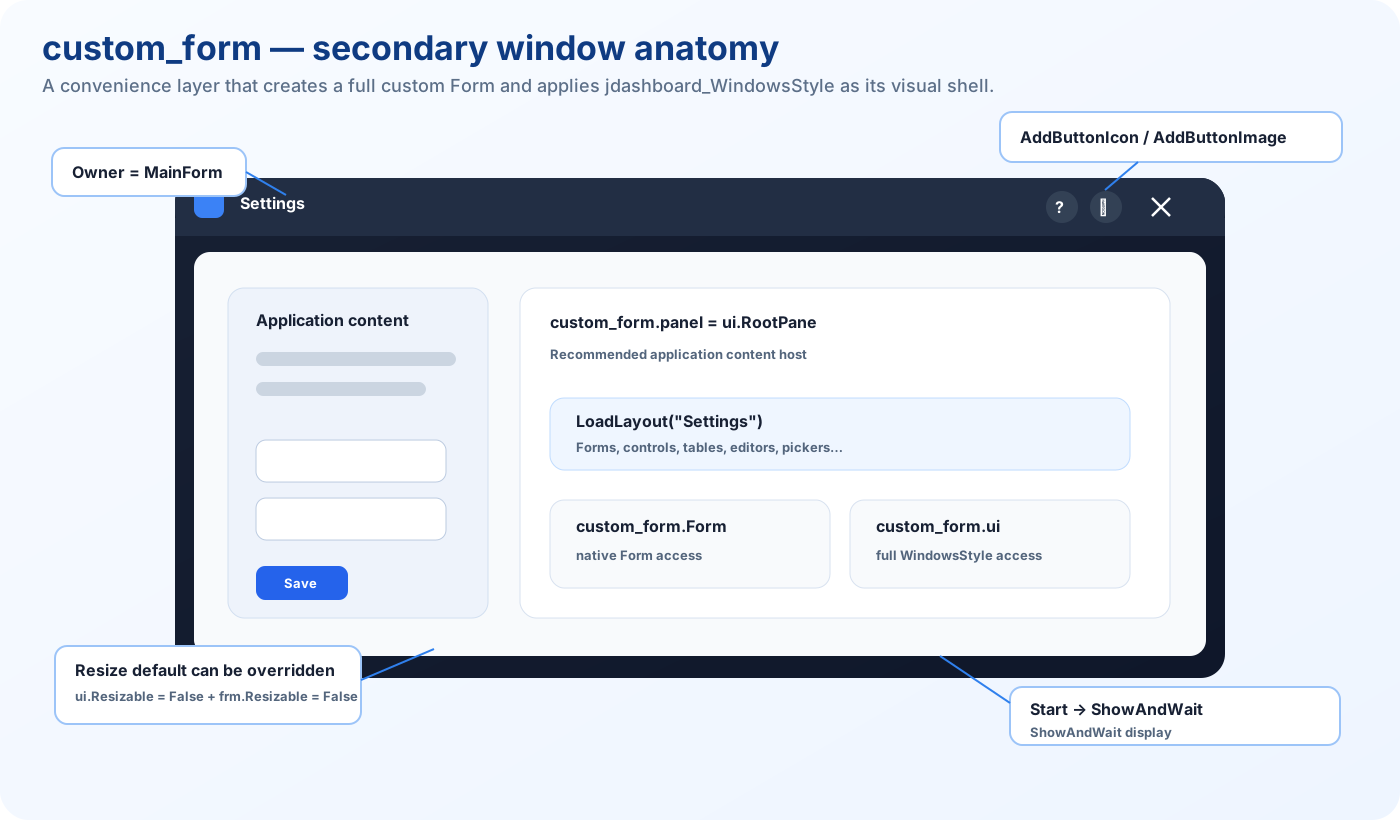
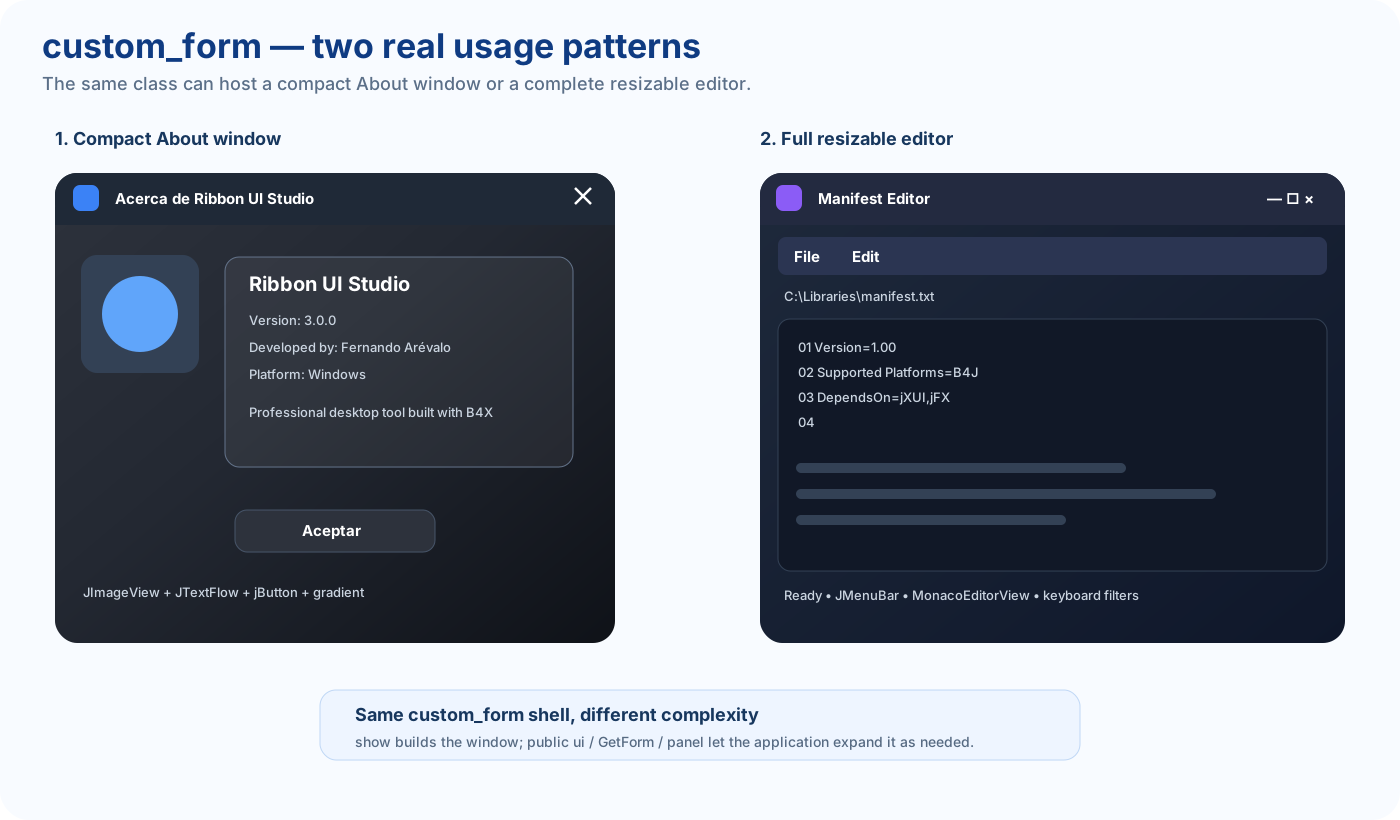
The class creates a Form, applies WindowsStyle, assigns an Owner, prepares its content area and then exposes both the real Form and the complete WindowsStyle instance. This allows the same class to power a compact About screen or a much larger tool window with JMenuBar, MonacoEditorView, keyboard shortcuts and resizing.
custom_form
    ↓ creates
B4J Form
    ↓ applies
jdashboard_WindowsStyle
    ↓ exposes
panel + RootPane + Form + ui
    ↓
the application builds the required window
The initial defaults favor a compact secondary window, but after show the developer can change ui and GetForm to build much more complex tools.
Use it for About windows, settings, preferences, property editors, previews, selectors, utility tools, complete editors, JMenuBar windows, MonacoEditorView windows, resizable secondary Forms and other jdashboardUI-based windows.
Direct jdashboard_WindowsStyle remains useful when lower-level control over an existing Form is preferred.
Main dependencies
custom_form uses:
- jdashboard_WindowsStyle;
- jdashboardUtils;
- JFX;
- XUI;
- JavaObject.
It publicly exposes:
Public ui As jdashboard_WindowsStyle
so advanced WindowsStyle customization remains available.
Class_Globals also declares several non-private variables that real applications configure directly:
Dim imageicon As Image
Dim colorpanel, colorui As Paint
Dim title As String
Dim panel_round As Int = 5
Dim TitleTextColor As Paint = fx.Colors.White
Typical pre-show configuration:
frm.imageicon = xui.LoadBitmap(File.DirAssets, "icon.png")
frm.colorpanel = fx.Colors.Transparent
frm.colorui = fx.Colors.RGB(30, 30, 46)
frm.title = "My Window"
frm.panel_round = 10
frm.TitleTextColor = fx.Colors.White
frm.borders = 5
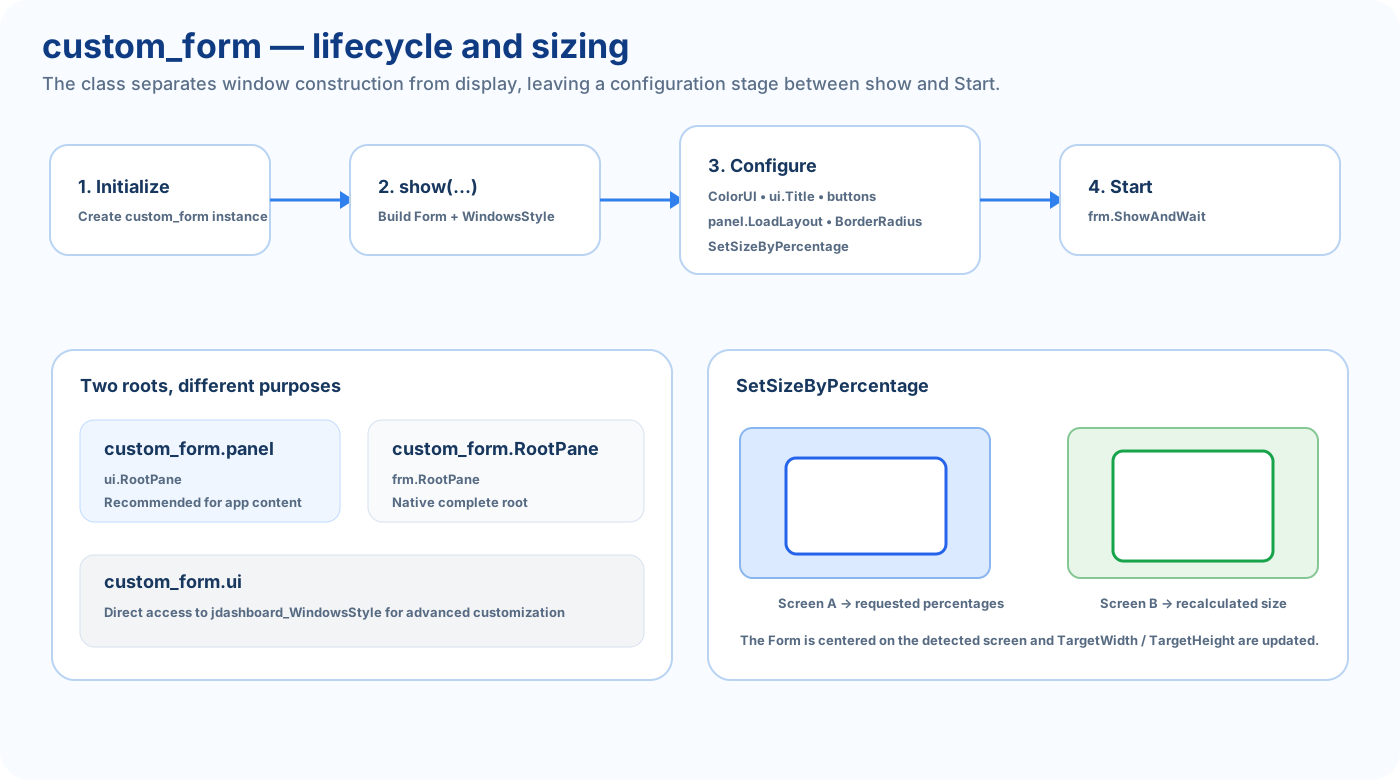
Correct lifecycle
Initialize
    ↓
show(...)
    ↓
configure ui / load layout / add buttons
    ↓
Start
    ↓
ShowAndWait
show builds the Form.
Start displays it.
Minimal example
Private SettingsForm As custom_form

Private Sub OpenSettings
    SettingsForm.Initialize

    SettingsForm.show(Me, "SettingsForm", 650, 420, MainForm)

    SettingsForm.ColorUI = fx.Colors.RGB(30, 30, 46)
    SettingsForm.ui.Title.Text = "Settings"
    SettingsForm.ui.AlwaysOnTop = False

    SettingsForm.panel.LoadLayout("Settings")

    SettingsForm.AddButtonIcon( _
        "closeSettings", _
        Chr(0xE14C), _
        fx.Colors.White, _
        fx.CreateMaterialIcons(22), _
        "Close")

    SettingsForm.Start
End Sub

Private Sub closeSettings_Click
    SettingsForm.close
End Sub
show
show(callback As Object, Eventname As String, _
     width As Double, height As Double, parent As Form)
Current implementation:
- stores callback and EventName;
- stores TargetWidth / TargetHeight;
- creates a new Form;
- selects TRANSPARENT style;
- initializes jdashboard_WindowsStyle;
- applies an icon when available;
- assigns parent as Owner;
- configures title state;
- disables WindowsStyle resize;
- applies BorderWidth;
- disables WindowsStyle animation;
- applies jdashboardUtils.customNode;
- disables native Form resize;
- disables MenuType.
show does not display the Form.
Start
Dialog.Start
Internally:
frm.ShowAndWait
This makes custom_form primarily a modal secondary-window helper.
panel vs RootPane
Dialog.panel
returns ui.RootPane and is the recommended place for application layouts.
Dialog.panel.LoadLayout("Settings")
Dialog.RootPane
returns frm.RootPane, the native complete root.
Use panel for normal content and RootPane only when you need full native root access.
Form and ui
Dim F As Form = Dialog.Form
Form exposes the actual internal Form.
The public ui field exposes the WindowsStyle instance:
Dialog.ui.Title.Text = "Settings"
Dialog.ui.BorderRadius(14)
Dialog.ui.Dropshadow = fx.Colors.Black
Dialog.ui.AlwaysOnTop = False
ColorUI
Dialog.ColorUI = fx.Colors.RGB(32, 36, 48)
Since ui is initialized inside show, the safest order is:
Dialog.show(...)
Dialog.ColorUI = MyColor
Dialog.Start
borders
Dialog.borders = 8
The value is copied to ui.BorderWidth during show.
Default: 5.
Set it before show.
Initial resize and menu state
During show the implementation starts with:
ui.Resizable = False
frm.Resizable = False
ui.AnimationsActivated = False
ui.MenuType = ui.no_menu
These are initial defaults, not hard limitations.
After show a real application can enable resize at both levels:
frm.UI.Resizable = True
frm.GetForm.Resizable = True
One real editor built with custom_form does exactly this and then sets minimum Stage dimensions. custom_form can therefore host a large resizable editor, not only a compact dialog.
Real use case 1 — Ribbon UI Studio About window
A real About window configures custom_form before show:
frm.Initialize
frm.imageicon = xui.LoadBitmap(File.DirAssets, "addin-office@48px.png")
frm.colorpanel = fx.Colors.Transparent
frm.colorui = fx.Colors.RGB(30, 30, 46)
frm.title = "Acerca de Ribbon UI Studio"
frm.borders = 5

frm.show(Me, "frm", 600dip, 430dip, Parent)
frm.ui.AlwaysOnTop = False
It then adds JImageView, JTextFlow, a jButton, a custom close button and a gradient over frm.RootPane.
This demonstrates the compact, highly customized window use case.
Real use case 2 — complete Monaco editor
Another real application uses custom_form as the shell of a 900 × 650 editor.
After show it enables resizing:
frm.UI.Resizable = True
frm.GetForm.Resizable = True
It then builds inside frm.Panel:
- a content host;
- JMenuBar;
- File and Edit menus;
- MonacoEditorView;
- path label;
- status bar;
- keyboard event filters;
- native close interception;
- an initialization Timer.
This demonstrates that custom_form is a complete window builder, not merely a dialog class.
AddButtonIcon
Dialog.AddButtonIcon( _
    "helpDialog", _
    Chr(0xE887), _
    fx.Colors.White, _
    fx.CreateMaterialIcons(22), _
    "Help")
The class creates a transparent Button, configures its icon and Tooltip, registers JavaFX handlers through JavaObject and inserts it into ui.hbWindowTopButtons.
AddButtonImage
Dialog.AddButtonImage( _
    "profileDialog", _
    File.DirAssets, _
    "user.png", _
    "Profile")
Images are prepared through jdashboardUtils.ButtonSetImage.
Click and hover events
Button EventName maps directly to:
EventName_Click
EventName_MouseEntered
EventName_MouseExited
Private Sub helpDialog_Click
    Log("Help")
End Sub
Private Sub helpDialog_MouseEntered(ButtonSender As Button, EventData As MouseEvent)
End Sub

Private Sub helpDialog_MouseExited(ButtonSender As Button, EventData As MouseEvent)
End Sub
close
Dialog.close
The method disposes ui and closes the Form.
frm_Close also disposes WindowsStyle if the native Form is closed directly.
For a secondary Form, prefer a custom close button rather than WindowsStyle ACTION_EXIT, because ACTION_EXIT exits the whole application.
Percentage sizing
Dialog.SetSizeByPercentage(60, 70)
The implementation selects the screen containing the Form center, calculates the requested percentages, centers the Form and updates TargetWidth / TargetHeight.
Dim W As Double = Dialog.GetPercentX(50)
Dim H As Double = Dialog.GetPercentY(25)
Configuration variables omitted by the metadata extractor
The current module_public_elements explicitly lists only:
borders
ui
as fields.
However, the source also declares these without Private:
Dim imageicon As Image
Dim colorpanel, colorui As Paint
Dim title As String
Dim panel_round As Int = 5
Dim TitleTextColor As Paint = fx.Colors.White
Real B4J applications access them directly, so they are part of practical custom_form configuration even though the JSON extractor does not list them as fields.
The source also contains:
Sub setFormIcon(image As Image)
but it is not declared Public. Use imageicon before show, or ui.SetIcon / GetForm.Icon after show.
Exported public API
Methods
| API | Purpose |
|---|---|
| Initialize | Initialize helper |
| show | Build and prepare Form |
| Start | Run ShowAndWait |
| panel | Return ui.RootPane |
| close | Dispose and close |
| AddButtonImage | Add image top button |
| AddButtonIcon | Add icon top button |
| GetPercentX | Percent of TargetWidth |
| GetPercentY | Percent of TargetHeight |
| SetSizeByPercentage | Screen-relative sizing |
Properties
| Property | Type |
|---|---|
| ColorUI | Paint |
| RootPane | AnchorPane |
| Form | Form |
Fields and direct configuration
| Field / variable | Type | Purpose |
|---|---|---|
| borders | Int | BorderWidth copied during show |
| ui | jdashboard_WindowsStyle | Full WindowsStyle access |
| imageicon | Image | Icon applied to Form and WindowsStyle |
| colorpanel | Paint | Internal content background |
| colorui | Paint | Base color passed to WindowsStyle |
| title | String | Native and custom title |
| panel_round | Int | Radius used by customNode |
| TitleTextColor | Paint | Initial title text color |
custom_form vs jdashboard_WindowsStyle
| custom_form | jdashboard_WindowsStyle |
|---|---|
| creates a new Form | styles an existing Form |
| secondary-window focused | general window engine |
| Owner built in | Owner managed by developer |
| Start uses ShowAndWait | developer chooses Show behavior |
| starts non-resizable but can be enabled after show | resize fully configurable |
| no side menu | MenuType configurable |
| animations disabled | animations configurable |
| compact API | complete API |
| exposes ui | underlying engine |
WindowsStyle is the engine. custom_form is the practical builder for complete B4J windows based on that engine. It is not merely a dialog.