
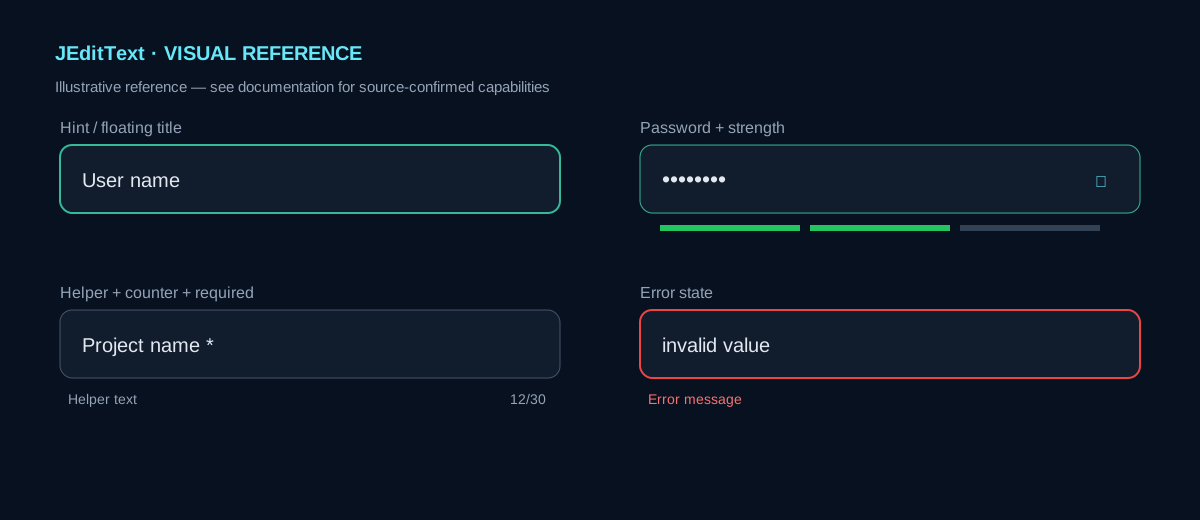
What it is
JEditText is an XUI-based text-input Custom View. The real source supports B4J, B4A and B4i and includes hint/floating title, icons, password mode, strength indicator, multiline, helper text, counter, max length, required-field marker, read-only and error state.
The image above is illustrative only. It is not used to claim features that do not exist in source.
Events
TextChanged(Old, New), FocusChanged(HasFocus), EnterPressed, and ClickedIcon(Open) are declared public events.
Designer Properties
Source-confirmed properties include ActiveColor, CornerRadius, IconBackgroundColor, BackgroundColor, TextColor, HintTextColor, IconDeleteColor, IconColor, HintText, TextSize, IconSize, BorderWidth, padding, static/password modes, password strength, icons, multiline, floating hint, required field, helper text, max length, counter, input type and read-only.
InputType: Text|Number|Phone|Email|Decimal. MaxLength=0 means unlimited.
Create in code
Dim UserName As JEditText
UserName.Initialize(Me, "UserName")
UserName.AddToParent(Root, "username", "User name", _
    20dip, 20dip, 320dip, 64dip, _
    0xFF35B998, 0xFFF5F7FA, 0xFF12153D, _
    14, False, True, 1, xui.Color_White)
Text, hint and floating title
UserName.Text = "Fernando"
UserName.HintText = "User name"
UserName.HintAsTitle = True
With HintAsTitle=False, the hint behaves as a placeholder according to the component logic.
Required, helper and counter
UserName.RequiredField = True
UserName.HelperText = "Enter your account name"
UserName.MaxLength = 30
UserName.ShowCounter = True
When MaxLength > 0, text beyond the limit is trimmed by the text-change handler.
Error
UserName.Error = "This field is required"
UserName.clearError
Error changes border/hint color and displays the message. IsError and ErrorText are readable state properties.
Password and multiline
Password.PasswordMode = True
Password.PasswordStrength = True
Notes.Multiline = True
Password mode includes a visibility toggle. Password strength uses three visual segments. On B4J, changing multiline recreates the internal editor while preserving text.
ReadOnly
UserName.ReadOnly = True
This disables native editing.
InputType precision
The setter exists cross-platform, but Number/Phone/Email/Decimal keyboard configuration is implemented inside #If B4A. On B4J it must not be described as validation or an effective keyboard-type change.
Icons and logo
Confirmed APIs include ShowIcon, IconColor, Icon, Icon2, SetLogo, SetIconSize, ShowDeleteIcon and DeleteIconColor.
Public methods
Initialize, DesignerCreateView, AddToParent, Base_Resize, Activate, SetLogo, SetIconSize, visibleHintText, GetNativeTextField, clearError, Wait, RefreshView.
Confirmed limitations
- No native public
Success Stateproperty. InputType="Email"does not validate email addresses.- No
Placeholderproperty; useHintTextwithHintAsTitle=False. - Multiline is a real feature.
- ReadOnly disables native editing and platform implementation differs.